> ## Documentation Index
> Fetch the complete documentation index at: https://docs.tryreplicas.com/llms.txt
> Use this file to discover all available pages before exploring further.
# Plan Mode
> Ask agents to propose a plan before they change code.
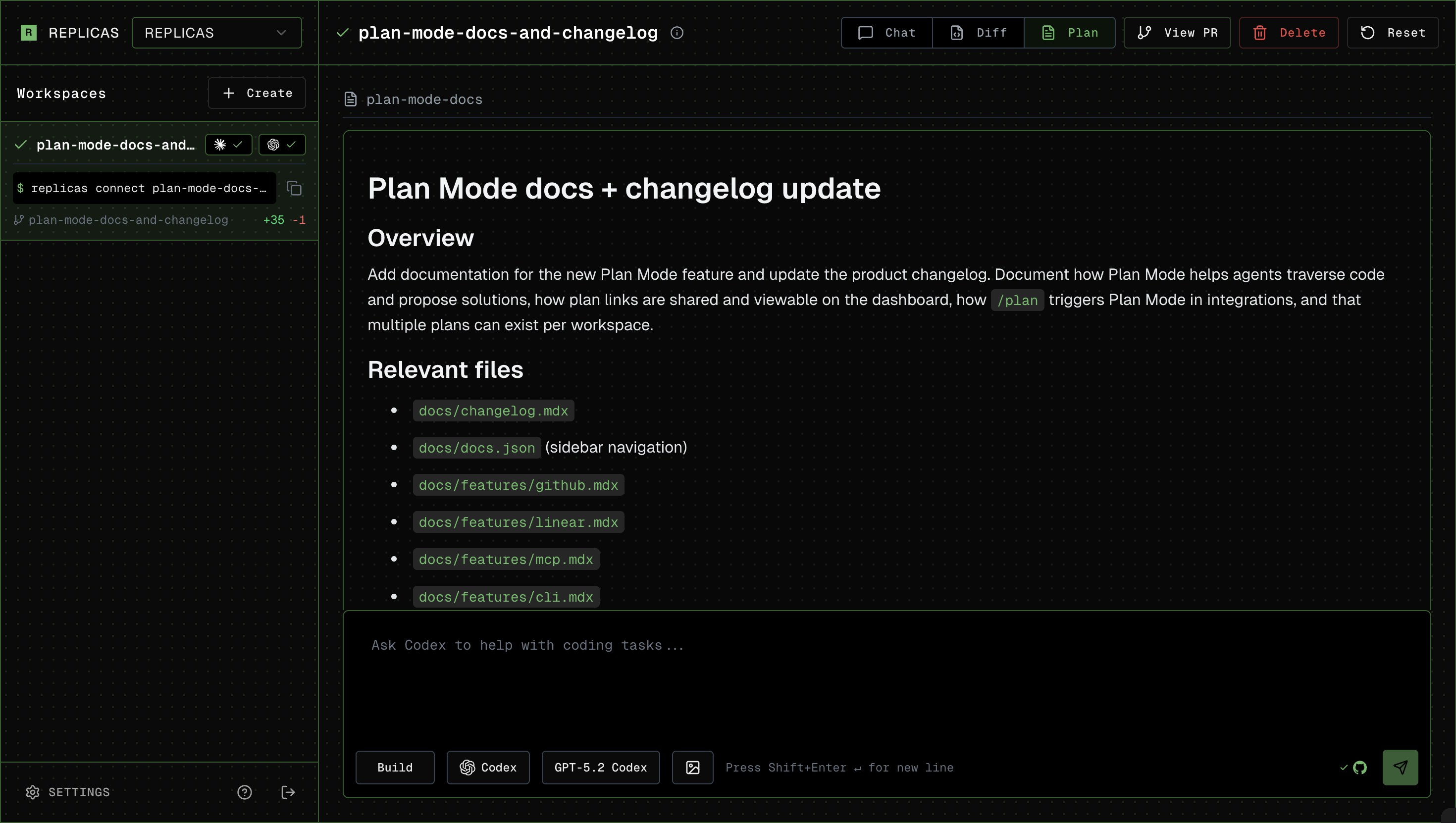
Plan Mode allows you to understand and scope work before building. When enabled, the coding agent traverses the codebase, proposes an implementation and step-by-step plan, and asks you clarifying questions if needed.
 ## How to Use
1. **Start your message with `/plan`** (on the dashboard, you can click to toggle!)
2. **Agent returns the plan.** If using from GitHub or Linear, the agent will provide a link for you to review the plan.
3. Answer potential clarifying questions, or tell it to go ahead!
Example:
```
/plan add usage tracking to the billing endpoint
```
### Viewing Plans in the Canvas Tab
Plan Mode markdown plans show up in the **Canvas** tab in the lower half of the provenance pane on the right side of the workspace. The agent's live task checklist appears in chat as it is updated. Each Canvas item gets a type pill: `Plan` for markdown, `Page` for HTML, `Image`/`Video`/`Audio` for media. Click any item to open it in the main viewport, the same way clicking a file in the diff list opens the diff. Canvas discovers plans in Claude Code and OpenCode's native plan directories, plus files agents place in `~/.replicas/canvas/`. Codex and Cursor keep native plans in their conversation state, so those plans and checklist updates appear in chat instead.
### Copy and Download Plan Contents
When viewing a plan in the main viewport, the header has a **Copy** button (copies the markdown to your clipboard) and a **Download** button (saves it as a `.md` file).
### Quote-Reply From the Plan Viewer
When reviewing a plan, select any chunk of text (for example, a clarifying question at the end of the plan) to get a floating **Reply** button. Clicking it adds a comment card to the chat composer, similar to commenting in Google Docs.
Each card holds the quoted text and its own reply box, so you can leave multiple comments on different sections of the plan and reply to each one independently. Hit Send to ship every quote and reply in a single message; the chat tab will render them as structured blocks so the agent (and you) can see exactly what each reply is responding to.
## How to Use
1. **Start your message with `/plan`** (on the dashboard, you can click to toggle!)
2. **Agent returns the plan.** If using from GitHub or Linear, the agent will provide a link for you to review the plan.
3. Answer potential clarifying questions, or tell it to go ahead!
Example:
```
/plan add usage tracking to the billing endpoint
```
### Viewing Plans in the Canvas Tab
Plan Mode markdown plans show up in the **Canvas** tab in the lower half of the provenance pane on the right side of the workspace. The agent's live task checklist appears in chat as it is updated. Each Canvas item gets a type pill: `Plan` for markdown, `Page` for HTML, `Image`/`Video`/`Audio` for media. Click any item to open it in the main viewport, the same way clicking a file in the diff list opens the diff. Canvas discovers plans in Claude Code and OpenCode's native plan directories, plus files agents place in `~/.replicas/canvas/`. Codex and Cursor keep native plans in their conversation state, so those plans and checklist updates appear in chat instead.
### Copy and Download Plan Contents
When viewing a plan in the main viewport, the header has a **Copy** button (copies the markdown to your clipboard) and a **Download** button (saves it as a `.md` file).
### Quote-Reply From the Plan Viewer
When reviewing a plan, select any chunk of text (for example, a clarifying question at the end of the plan) to get a floating **Reply** button. Clicking it adds a comment card to the chat composer, similar to commenting in Google Docs.
Each card holds the quoted text and its own reply box, so you can leave multiple comments on different sections of the plan and reply to each one independently. Hit Send to ship every quote and reply in a single message; the chat tab will render them as structured blocks so the agent (and you) can see exactly what each reply is responding to.